
Files, search, and previews
Follow the files an agent changed without switching to a second application for routine review.
Browse the project
The Explorer shows the active project's files with familiar file icons and Git decorations. A modified tracked file opens as a diff against HEAD. Clean and untracked files open in the editor.
- Create, rename, duplicate, and move files or folders.
- Move deletions to the macOS Trash after confirmation.
- Reveal a file in Finder or copy its full or relative path.
- Drag a file from Explorer onto a supported agent session as an attachment.
Find a file by name
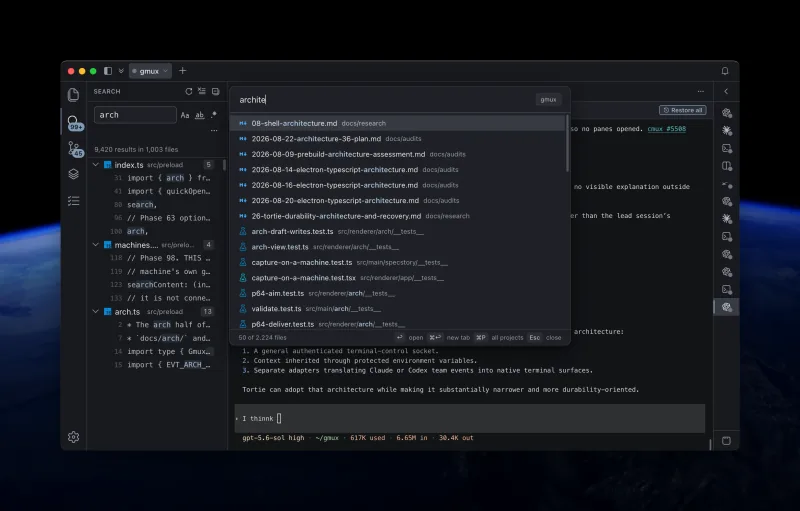
Press ⌘P and type the parts of a file name or path that you remember. Enter opens a reusable preview. ⌘Enter keeps the file open in its own tab.
Press ⌘P again while the palette is open to search every project already open in Tortie. Add a line number, such as :412, to open the file at that line.
Use file and tab menus
Right-click a file or folder for actions that belong to that selection. Local files can open in Tortie, the default macOS app, or another compatible app. You can also create entries, rename, duplicate, reveal in Finder, copy paths, or move local items to Trash.
Right-click an editor tab to close one or several tabs, keep a reusable preview open, copy its path, or reveal the file in Finder. A single click normally uses one reusable preview tab; double-clicking the tab or editing the file keeps it open.
Search content and symbols
- Use ⇧⌘F to search file contents with ripgrep.
- Use ⇧⌘O to search symbols in the current file.
- Prefix a Quick Open query with
#to search symbols across the project. - Use F4 and ⇧F4 to move between results.
Content search supports case-sensitive, whole-word, and regular-expression modes.
Right-click a result to open a preview or new tab, copy one matching line or every match in a file, and copy the full or relative path.
Edit and preview safely
Use ⌘E to show or hide the editor and ⌘S to save. Markdown, HTML, images, and other supported formats open in purpose-built previews.
A wide table or code block in a Markdown preview breaks out of the reading column and takes the width its content needs, up to the width of the pane. A short block fills the reading column as before, and a table too wide even for the pane scrolls sideways in its own box.
A large Markdown file opens at once, and it opens rendered: the preview shows its first screen straight away and fills in the rest while you read. A file that begins with one enormous table, and a large one with footnotes, still opens in Source with Preview one click away on the mode chip, which says what that click will cost. A jump to a heading far down a long page reaches it once the page has finished filling in.
Save without writing over somebody else
⌘S writes the file. If the file changed on disk while you were typing, because an agent wrote to it or another application did, Tortie says so instead of writing over it. It offers three answers: Compare, which opens the two versions side by side, Cancel, or Overwrite.
Overwrite is never the default, and it is checked again as you press it, so a third write arriving while the question is on screen is caught as well.
Every kind of file gets the same question: a file inside a project, a symbolic link, a file outside your open projects such as a global CLAUDE.md, and one that grew too large to read while you were typing.
Tortie can also save for you. Turn on Auto Save in the File menu and a file saves a moment after you stop typing, or when you click away from it. It is off until you turn it on, and Settings lets you choose the delay.
Use the editor's own menu
Right-click inside the editor for the ordinary editing rows along with Find, Change All Occurrences, Go to Line, Fold and Unfold, and History, Copy Path, Copy Relative Path and Save for the file you are in.
A Markdown table under your cursor can be tidied from that menu, and a wall of one-line JSON pretty-printed or squashed back onto one line, over what you have selected or wherever the cursor is. One ⌘Z takes any of them back.
The parts behind files and search
| Part | Library and benefit |
|---|---|
| Explorer | Pierre Trees provides a path-first file tree that can carry search results, file icons, and Git state. |
| Editor | Monaco Editor provides proven editing, find, selections, undo, syntax support, and a minimap. Tortie loads it only when you first open a file. |
| Content search | ripgrep streams fast results across large repositories. |
| Symbols | Tree-sitter understands source structure so symbol search is more useful than plain text matching. |
| Previews | react-markdown renders Markdown as structured content, while Shiki keeps code highlighting consistent. |