
Getting started
Open a project. Start an agent. Close Tortie whenever you like—your session keeps running.
Requirements
Tortie supports Apple silicon Macs running macOS 15.7.9 or later. The release includes its own copy of tmux, so you do not need Homebrew or a separate terminal multiplexer.
Install Tortie
- Download the latest DMG. Download Tortie for Apple silicon directly from GitHub.
- Move Tortie to Applications. Open the DMG and drag Tortie into your Applications folder.
- Open Tortie. macOS may ask you to confirm the first launch of the signed application.
Open your first project
Choose any folder from the home screen. A Git repository adds source control, history, branches, and change-aware file decorations. An ordinary folder still supports sessions, files, editing, and search.
- Open an existing folder.
- Create a new folder-backed project and optionally initialise Git.
- Clone a repository.
- Open a folder on a configured remote machine.
Start your first session
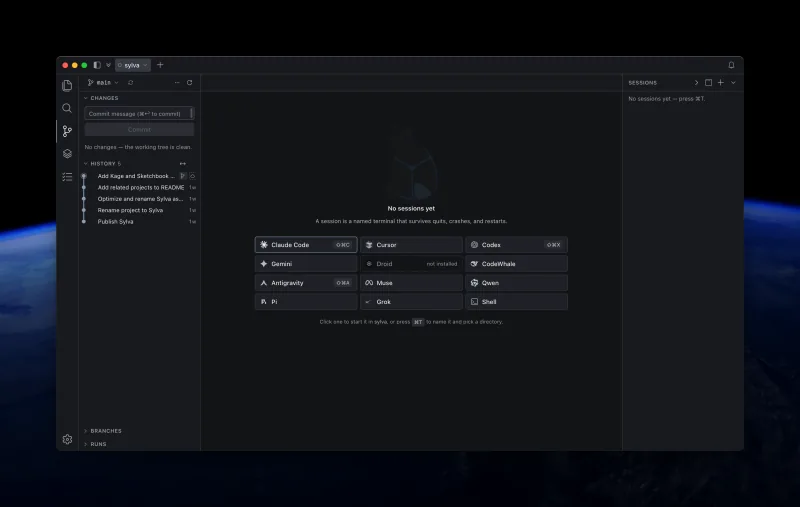
Press ⌘T. Choose an installed agent or a shell, give the session a useful name, and confirm its working directory. Tortie applies any launch defaults you have saved for that agent.
You can now quit Tortie without ending the session. Reopen the app to reconnect to the same running work.
What Tortie is for
Tortie is for developers who run several coding-agent threads and want one calm place to keep them named, scoped, and recoverable.
- It is not a supervisor dashboard or an activity feed.
- It is not an IDE rebuilt from scratch. It provides the familiar file, search, editor, and source-control tools that agent work needs.
- It is not a remote-control API. The optional
tortiecommand only opens a folder. - It does not require you to learn tmux commands, attach rituals, or server concepts.
Read What Tortie is for the full product model, intended audience, and cases where another kind of tool may fit better.