
Agent context and skills
The Context view answers a practical question: what will this agent load here, and which definition wins when several copies exist?
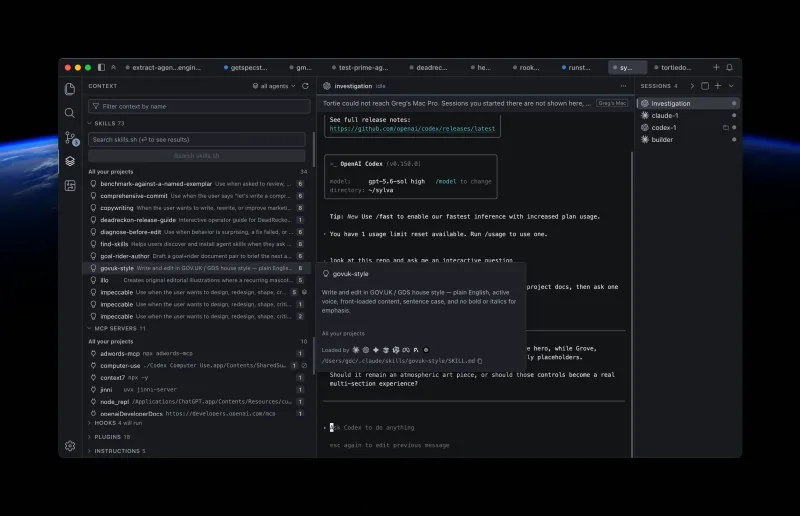
Open the Context view
Press ⌃⇧C to open Context for the active project. Choose an agent to inspect the configuration Tortie found for that agent and folder.
| Category | What Tortie shows |
|---|---|
| Skills | User, project, plugin, managed, and compatible skill folders the agent can discover. |
| MCP servers | Configured server commands, scope, connection state, and the file that defines each entry. |
| Hooks | The events and commands that can run around agent actions. |
| Plugins | Installed plugin context and the source folder it comes from. |
| Instructions | Agent-specific and shared instruction files that apply to the project. |
See which definition wins
Agents use different scope and precedence rules. Tortie applies the rule for the selected agent and category, shows the resolved winner, and keeps shadowed definitions reachable. It does not flatten every tool into one invented order.
- Skills, MCP servers, plugins, settings, and instructions may resolve in different orders.
- Hooks are grouped by event when they all run instead of pretending one shadows another.
- Broken, disabled, managed, shadowing, and shadowed entries keep distinct states.
- The detail view names the source path, scope, reload behavior, and any known problem.
Open and manage context entries
Right-click an entry to open its source file, reveal it in Finder, copy its name or path, and copy the command for MCP servers and hooks. A winning entry can also take you to the definition it shadows.
- Use Check connection for an MCP server only when you want Tortie to start its process or make its network request.
- Enable a user-owned skill for another supported agent.
- Update, disable, enable, or remove a user-owned skill through the bundled skills command.
- Review what changed before re-enabling a skill Tortie switched off after its pinned contents changed.
Inspect context on another machine
On a remote project, Context reads the agent configuration on that machine and applies the same agent-specific precedence rules. Paths are labelled for the remote machine.
Remote Context is inspectable but not a configuration editor. Tortie keeps copy actions and withholds actions that would open a remote path in a local app or install, update, disable, or remove a skill on the other machine.